Mastering Essential Linux Commands in 2026: A Beginner’s Terminal Guide with Examples
As a developer navigating the Linux terminal daily, mastering basic commands is a game-changer. Whether you're debugging a Node.js app, managing servers, or just organizing files, these commands save hours. Here, I'll walk through the most useful Linux commands with clear explanations, real examples, and tips from my own workflow.
These work on Ubuntu, Fedora, macOS (Terminal/zsh), and most distros. Let's dive in!
1. Navigation and Directory Basics
pwd — Print Working Directory Shows your current location in the filesystem. Example:
pwd
# Output: /home/amit/projects/my-app
ls — List Directory Contents Lists files and folders in the current directory. Common flags:
- ls -l → detailed (long) listing with permissions, owner, size, date.
- ls -a → show hidden files (starting with .).
- ls -la or ls -alh → detailed + human-readable sizes + hidden.
Example:
ls -la
# Shows permissions like drwxr-xr-x, file sizes, etc.
cd — Change Directory Navigate the filesystem.
- cd .. → go up one level (parent directory).
- cd ~ or cd → go to your home directory (/home/amit).
- cd - → return to the previous directory (very useful!).
- cd / → go to root directory.
Example:
cd projects/my-app
cd ..
cd -
2. Creating and Managing Directories & Files
mkdir — Make Directory Creates a new folder.
- mkdir -p path/to/nested/folder → creates parent directories if missing (no error if already exists).
Example:
mkdir -p website/static/{css,js}
# Creates: website/static/css and website/static/js
touch — Create Empty File or Update Timestamp
touch notes.txt
ls # → notes.txt appears (0 bytes)
rm — Remove Files/Directories
- rm file.txt → delete file.
- rm -r folder → recursive delete (folder + contents).
- rm -rf folder → force recursive, no prompts (dangerous—use carefully!).
- rm -i → interactive (prompt before delete).
Tip: Never run rm -rf / or similar! as it will remove your protected file
3. Copy, Move, Rename Files
cp — Copy Files/Directories Example:
cp notes.txt backup_notes.txt
cp -r folder1 folder2 (# recursive copy)
mv — Move or Rename Example (rename in same dir):
mv backup_notes.txt archived_notes.txt
mv file.txt /path/to/new/location/
4. Viewing and Editing Files
cat — Concatenate and Display File Content
cat notes.txt
less — View File (Scrollable) Better for large files: less notes.txt (q to quit).
head & tail — Show Beginning/End of File
head -n 5 notes.txt # first 5 lines
tail -n 3 notes.txt # last 3 lines
tail -f log.txt # follow live (great for logs!)
grep — Search Text in Files Powerful pattern search.
grep "amit" notes.txt
grep -i "error" app.log # case-insensitive
grep -r "TODO" . # recursive in current dir
nano — Simple Text Editor (Beginner-Friendly)
nano notes.txt
# Ctrl+O → Save, Enter → confirm filename
# Ctrl+X → Exit
vi / vim — Advanced Editor
vim notes.txt
# i → insert mode, Esc → command mode
# :w → save, :q → quit, :wq → save & quit
(Vim has a learning curve—start with nano!)
5. Process Management
ps aux — List All Running Processes
ps aux | grep node # find Node.js processes
ps aux | grep python
ps aux | grep :3000 # find processes on port 3000
kill — Terminate Process by PID
kill 96134 # gentle terminate
kill -9 96134 # force kill
On macOS (or when port shows as service name like "hbci"): Use lsof for better port checking:
lsof -i :3000 # shows processes on port 3000
lsof -i :3000 -P # shows numeric port (no name conversion)
sudo kill <PID>
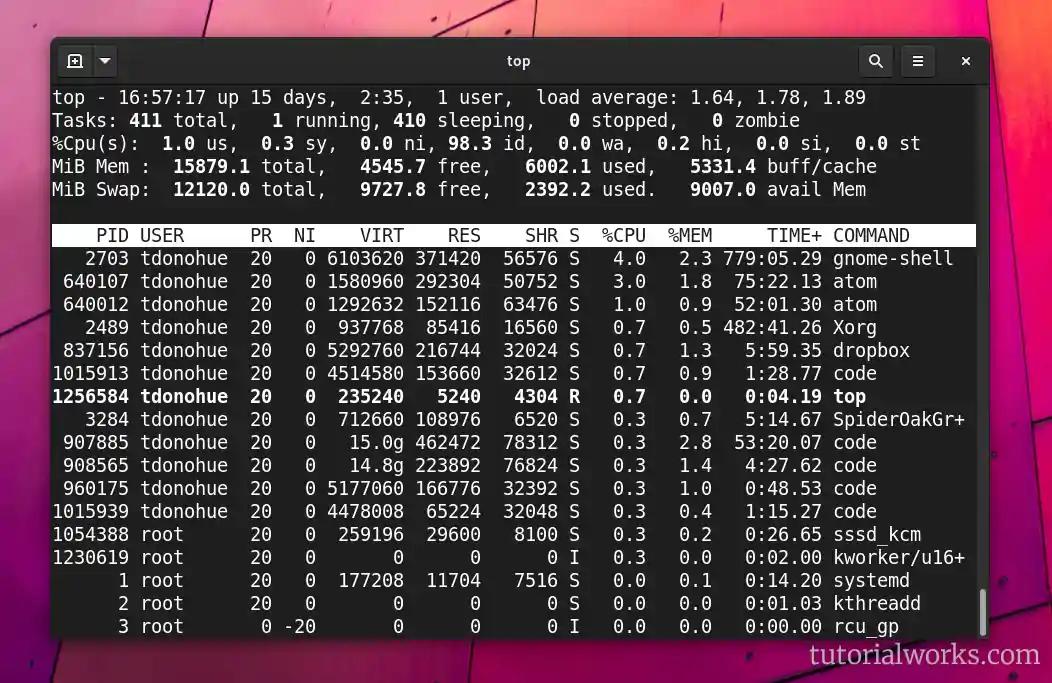
top — Interactive System Monitor
Shows CPU, memory, processes (q to quit).
uptime — System Uptime & Load
uptime
# Example: 12:55 up 12 days, 1:18, 3 users, load averages: 3.75 2.95 2.98
6. Networking & Data Transfer
curl — Transfer Data (Fetch APIs, Download, etc.) Super useful for testing APIs.
Examples:
curl https://official-joke-api.appspot.com/random_joke
# fetch JSON
curl -I https://example.com # headers only
curl -o joke.json https://official-joke-api.appspot.com/random_joke # save to file
curl -s -X POST -d '{"name":"Amit"}' https://api.example.com
# POST data silently
wget — Download Files/Websites
wget https://github.com/user/repo/archive/main.zip
unzip main.zip # (install unzip if needed: sudo apt install unzip)
Quick Tips & Best Practices (2026 Edition)
- Always double-check paths before rm -rf!
- Use chmod +x script.sh to make scripts executable (ls -l to check permissions).
- Run scripts: ./script.sh (note the ./).
- Chain commands with (pipe): ps aux | grep node | grep -v grep.
- For daily use, add aliases in ~/.bashrc or ~/.zshrc: alias ll='ls -la'
for more you can refer this video link